> ## Documentation Index
> Fetch the complete documentation index at: https://docs.xynehq.com/llms.txt
> Use this file to discover all available pages before exploring further.
# OAuth
> OAuth Authorization
This guide assumes you've already configured your google credentials, incase you haven't follow the guide below to first do that :
Setup your Google Credentials for the application.
## Enabling APIs
Switch to the new project you just created.
The first step is to enable the APIs which are needed for the app.
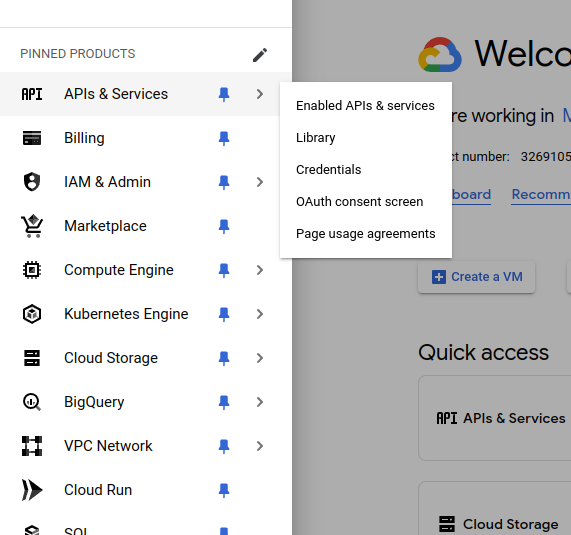
* From the menu in the side bar, under APIs and Services section select the `Enabled APIs & Services`.
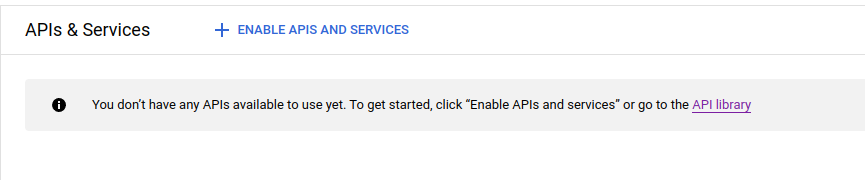
 * In the `Enabled APIs & Services` page, click on the `+ Enable APIs & Services`.
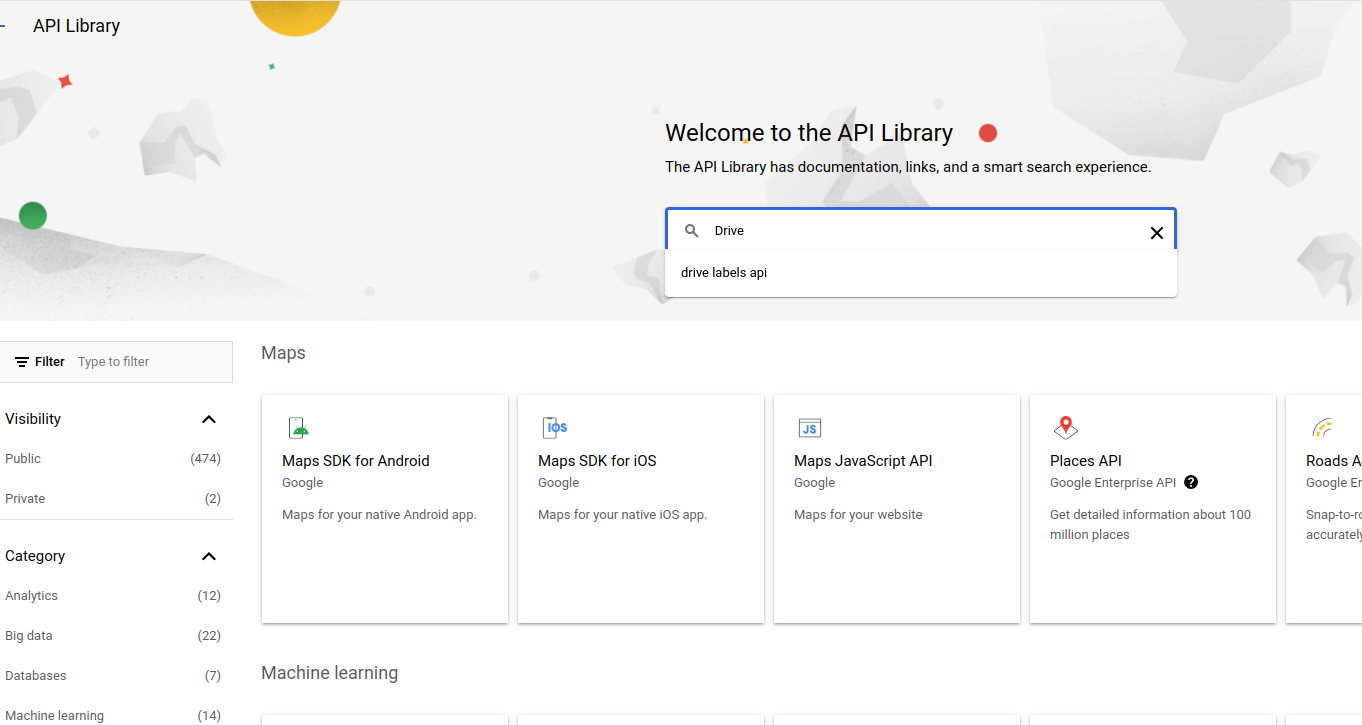
 * You will now see a search box where you can search for the specific API that you want to enable. (For example : Google Drive API)
 * Once you search for an API, you will find a list of APIs.
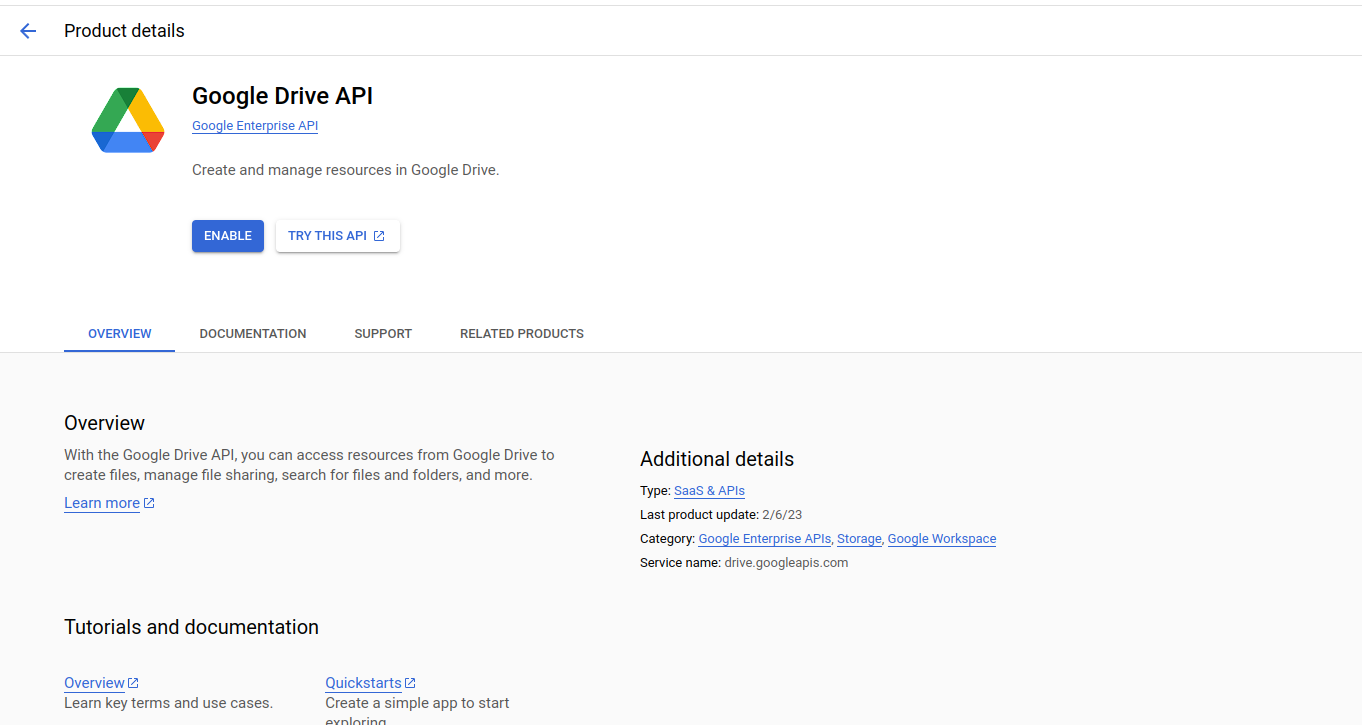
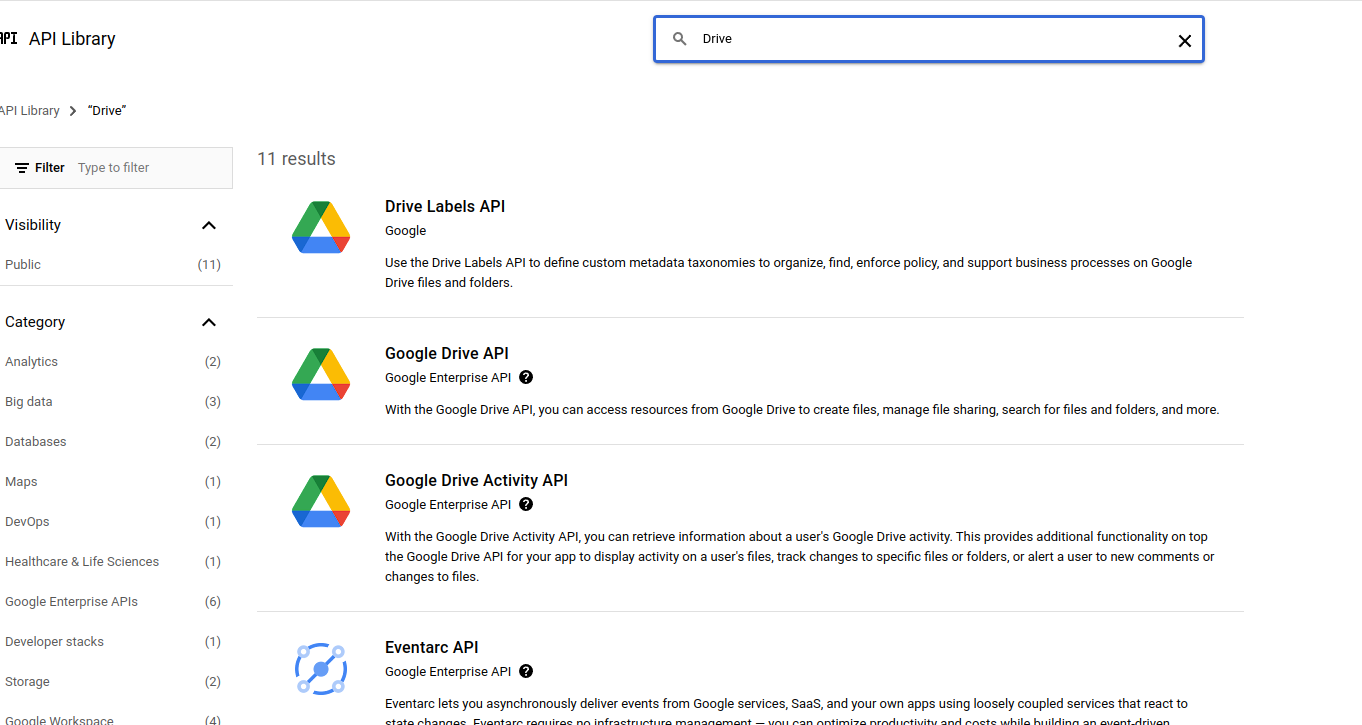 * From the list of APIs, select the Google Drive API to enable. And then click on `Enable` in the API page.
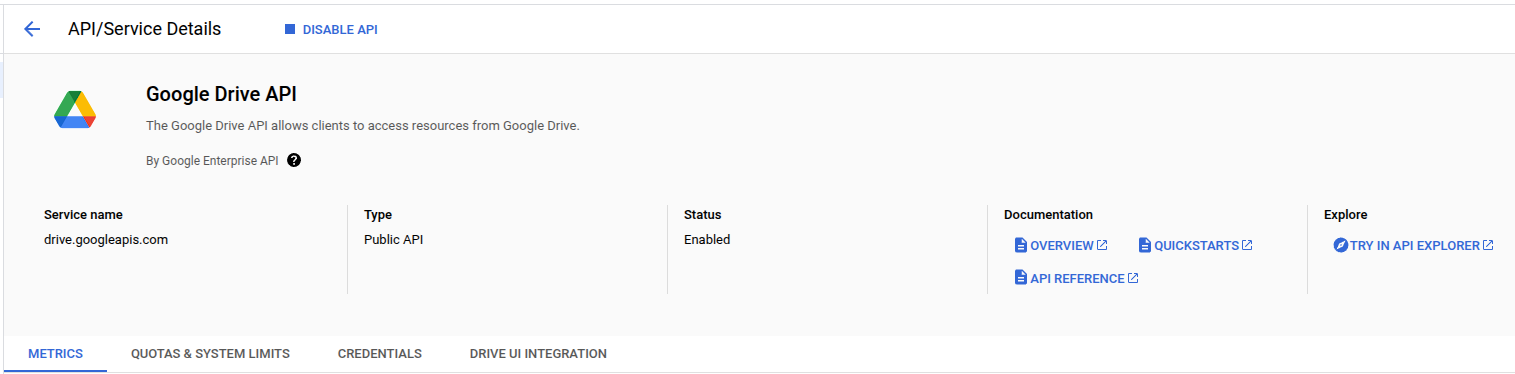
 * Once the API is enabled, you will see that a `DISABLE API` button appears on top of the page.
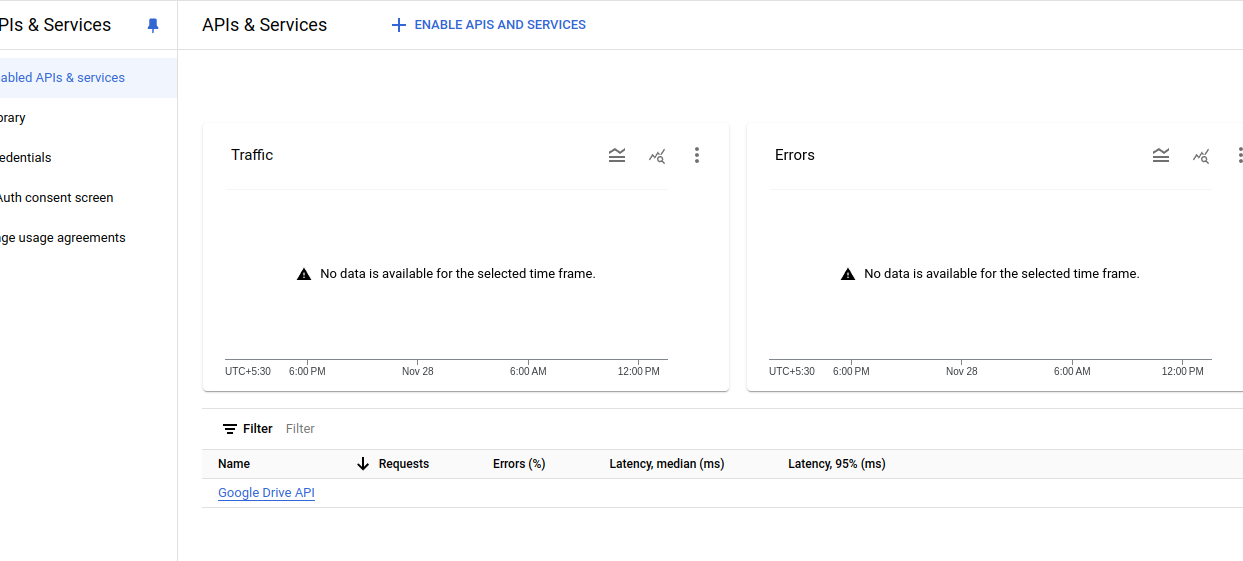
 * When you go back to the `Enabled APIs & Services` page, you will see that the enabled API has appeared in the list.
 Following the same steps above, enable the following APIs :
* [Google Drive](https://console.cloud.google.com/apis/library/drive.googleapis.com)
* [Google Calendar](https://console.cloud.google.com/apis/library/calendar-json.googleapis.com)
* [Google Slides](https://console.cloud.google.com/apis/library/slides.googleapis.com)
* [Google Docs](https://console.cloud.google.com/apis/library/docs.googleapis.com)
* [Google Sheets](https://console.cloud.google.com/apis/library/sheets.googleapis.com)
* [Gmail](https://console.cloud.google.com/apis/library/gmail.googleapis.com)
* [Contacts](https://console.cloud.google.com/apis/library/contacts.googleapis.com)
* [People](https://console.cloud.google.com/apis/library/people.googleapis.com)
Please make sure to **enable all** the APIs listed above to ensure the Xyne app runs smoothly.
## Adding the scopes for the Enabled APIs:
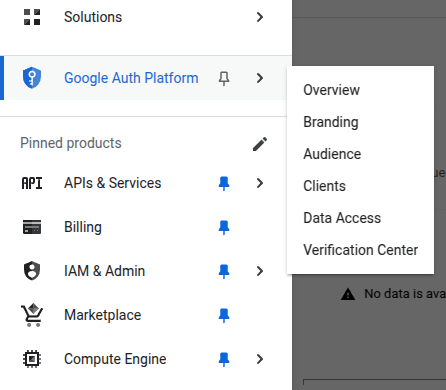
* From the menu on the left-side, navigate to `Google Auth Platform`. And under that, navigate to `Data Access` section.
Following the same steps above, enable the following APIs :
* [Google Drive](https://console.cloud.google.com/apis/library/drive.googleapis.com)
* [Google Calendar](https://console.cloud.google.com/apis/library/calendar-json.googleapis.com)
* [Google Slides](https://console.cloud.google.com/apis/library/slides.googleapis.com)
* [Google Docs](https://console.cloud.google.com/apis/library/docs.googleapis.com)
* [Google Sheets](https://console.cloud.google.com/apis/library/sheets.googleapis.com)
* [Gmail](https://console.cloud.google.com/apis/library/gmail.googleapis.com)
* [Contacts](https://console.cloud.google.com/apis/library/contacts.googleapis.com)
* [People](https://console.cloud.google.com/apis/library/people.googleapis.com)
Please make sure to **enable all** the APIs listed above to ensure the Xyne app runs smoothly.
## Adding the scopes for the Enabled APIs:
* From the menu on the left-side, navigate to `Google Auth Platform`. And under that, navigate to `Data Access` section.
 * Along with the scopes you had added before, add the rest of scopes for the enabled apis, using the `ADD OR REMOVE SCOPES` button.
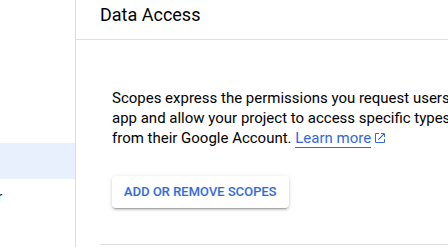 * Ensure to select the checkbox for all of these scopes \[you can use these values in the searchbox for the scopes table] :
* `/auth/drive.readonly`
* `/auth/documents.readonly`
* `/auth/spreadsheets.readonly`
* `/auth/presentations.readonly`
* `/auth/contacts.readonly`
* `/auth/contacts.other.readonly`
* `/auth/gmail.readonly`
* `/auth/calendar.events.readonly`
You can also choose to `manually` add the scopes in the `box` below.
```javascript theme={null}
https://www.googleapis.com/auth/drive.readonly,
https://www.googleapis.com/auth/documents.readonly,
https://www.googleapis.com/auth/spreadsheets.readonly,
https://www.googleapis.com/auth/presentations.readonly,
https://www.googleapis.com/auth/contacts.readonly,
https://www.googleapis.com/auth/contacts.other.readonly,
https://www.googleapis.com/auth/gmail.readonly,
https://www.googleapis.com/auth/calendar.events.readonly,
```
Click on `ADD TO TABLE`, and then `UPDATE`. You will now be able to see all the added scopes in the tables below:
* Ensure to select the checkbox for all of these scopes \[you can use these values in the searchbox for the scopes table] :
* `/auth/drive.readonly`
* `/auth/documents.readonly`
* `/auth/spreadsheets.readonly`
* `/auth/presentations.readonly`
* `/auth/contacts.readonly`
* `/auth/contacts.other.readonly`
* `/auth/gmail.readonly`
* `/auth/calendar.events.readonly`
You can also choose to `manually` add the scopes in the `box` below.
```javascript theme={null}
https://www.googleapis.com/auth/drive.readonly,
https://www.googleapis.com/auth/documents.readonly,
https://www.googleapis.com/auth/spreadsheets.readonly,
https://www.googleapis.com/auth/presentations.readonly,
https://www.googleapis.com/auth/contacts.readonly,
https://www.googleapis.com/auth/contacts.other.readonly,
https://www.googleapis.com/auth/gmail.readonly,
https://www.googleapis.com/auth/calendar.events.readonly,
```
Click on `ADD TO TABLE`, and then `UPDATE`. You will now be able to see all the added scopes in the tables below:
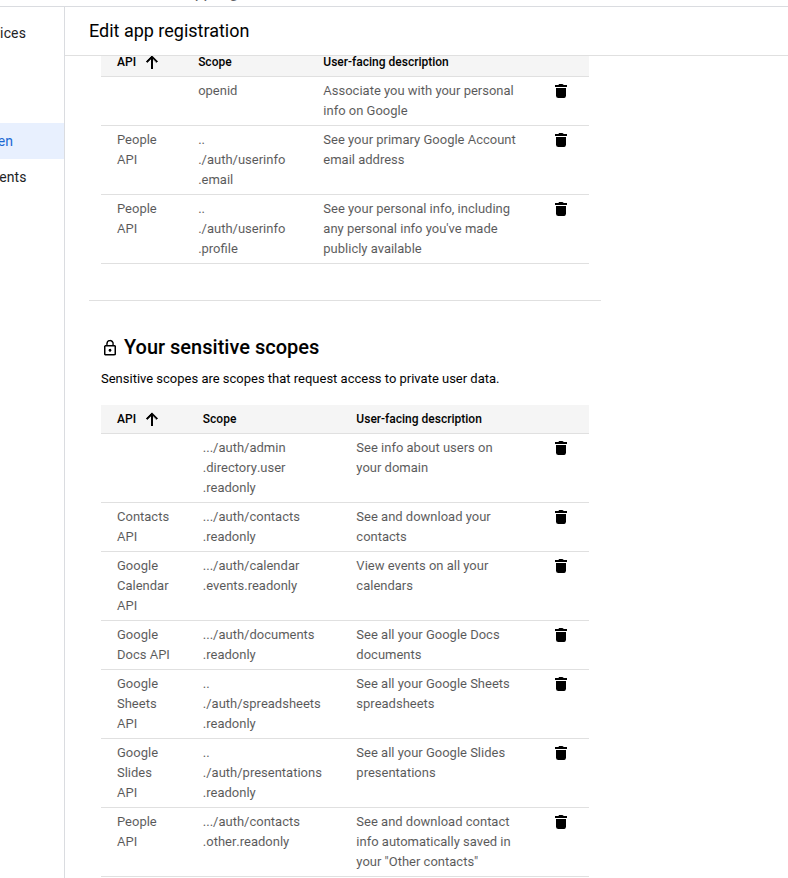 Then click on `SAVE` .
This concludes the set-up process of Google OAuth.
Then click on `SAVE` .
This concludes the set-up process of Google OAuth.