> ## Documentation Index
> Fetch the complete documentation index at: https://docs.xynehq.com/llms.txt
> Use this file to discover all available pages before exploring further.
# Service Account
> Setting up login via Google Service Account
This guide assumes you've already configured your google credentials, incase you haven't follow the guide below to first do that :
Setup your Google Credentials for the application.
### Setting up the Service Account and Credentials
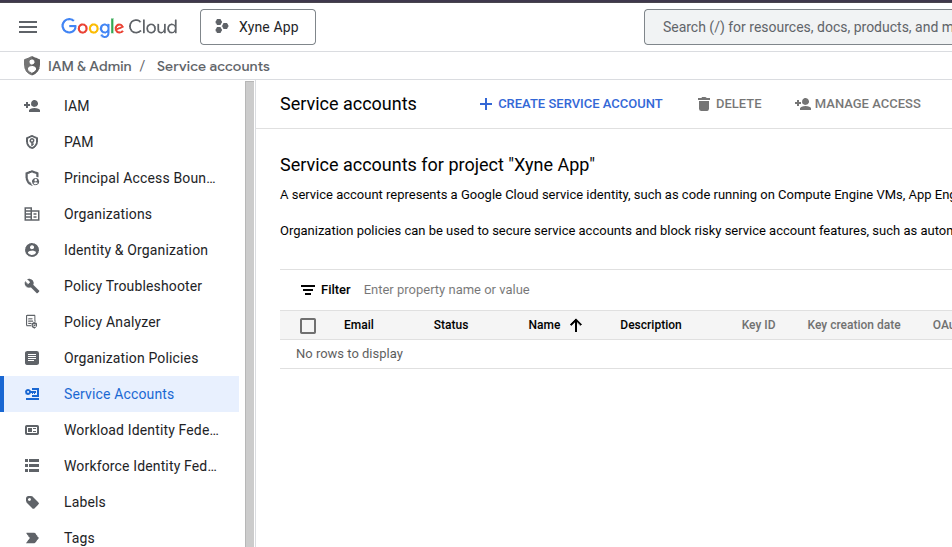
First, from the menubar on the side, navigate to the `IAM & Admin` section. In there look for the `Service Account` section. Or directly visit [here](https://console.cloud.google.com/iam-admin/serviceaccounts), and then select your project.
In there click on `+ CREATE SERVICE ACCOUNT `.
 Here, you will see the form that requires you to fill all the details about your service account.
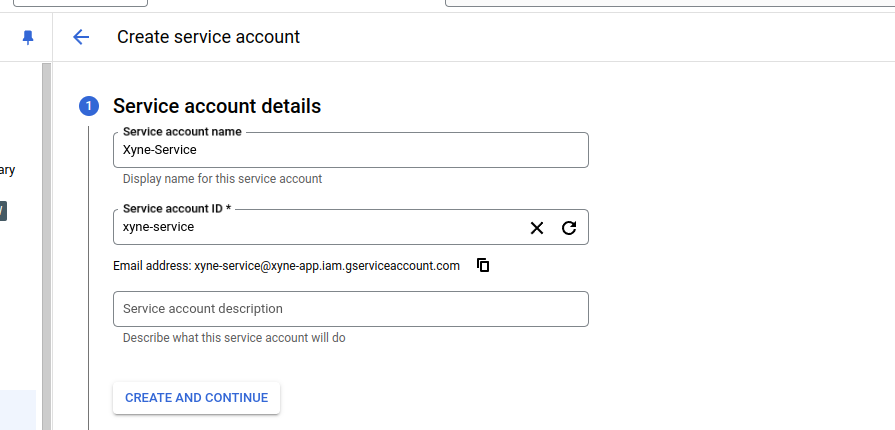 Once you've filled out the details, click on `CREATE AND CONTINUE`
* Grant the roles, based on the internal policies preferred by your organization, in the account.
Once you've filled out the details, click on `CREATE AND CONTINUE`
* Grant the roles, based on the internal policies preferred by your organization, in the account.
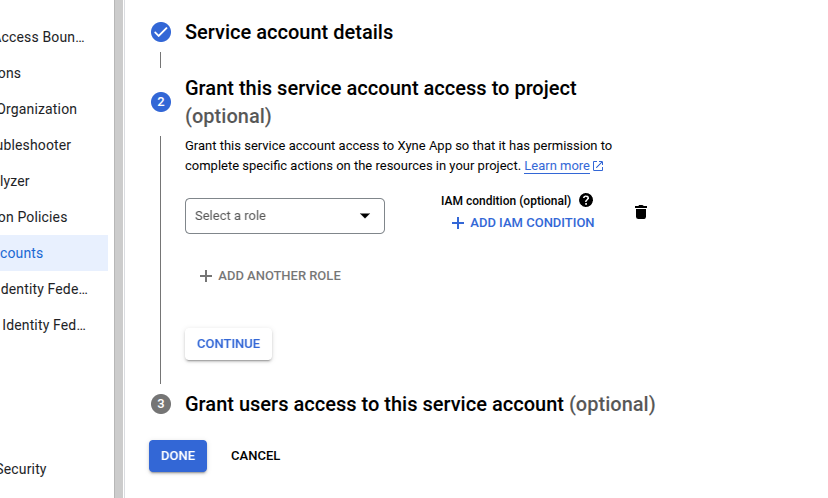 * Click on `continue`.
* Optionally you can allow a list of users to access the service account:
* Click on `continue`.
* Optionally you can allow a list of users to access the service account:
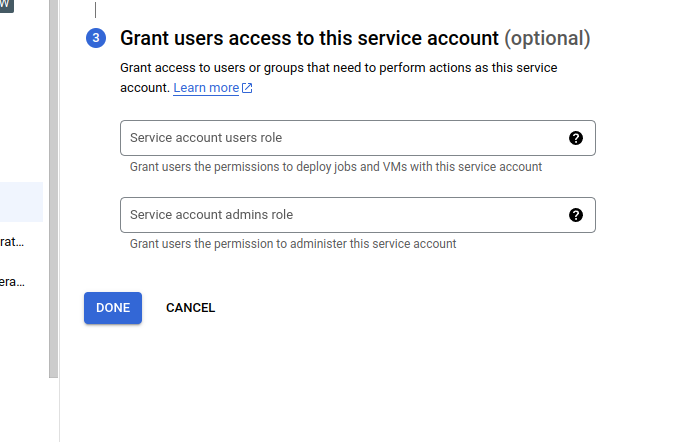 * Click on `Done`
* Once the service account has been created, you'll be navigated to the service account details page where you can now configure your key..
* In the `Service Account` section where you can see your newly created service account, you will find a `KEYS` tab.
* Click on `Done`
* Once the service account has been created, you'll be navigated to the service account details page where you can now configure your key..
* In the `Service Account` section where you can see your newly created service account, you will find a `KEYS` tab.
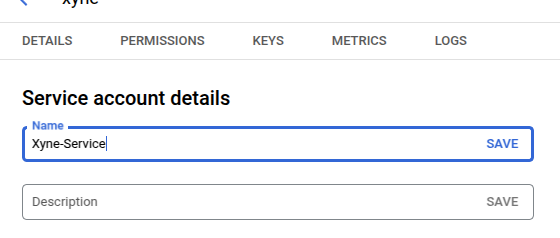 * In there navigate to the `keys` tab.
* Click on `ADD KEY`, followed by clicking on `Create New Key`
* In there navigate to the `keys` tab.
* Click on `ADD KEY`, followed by clicking on `Create New Key`
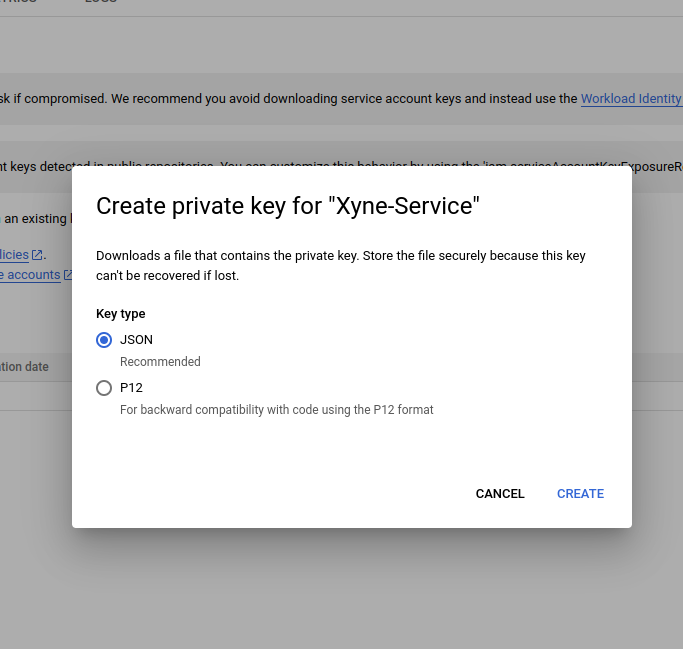
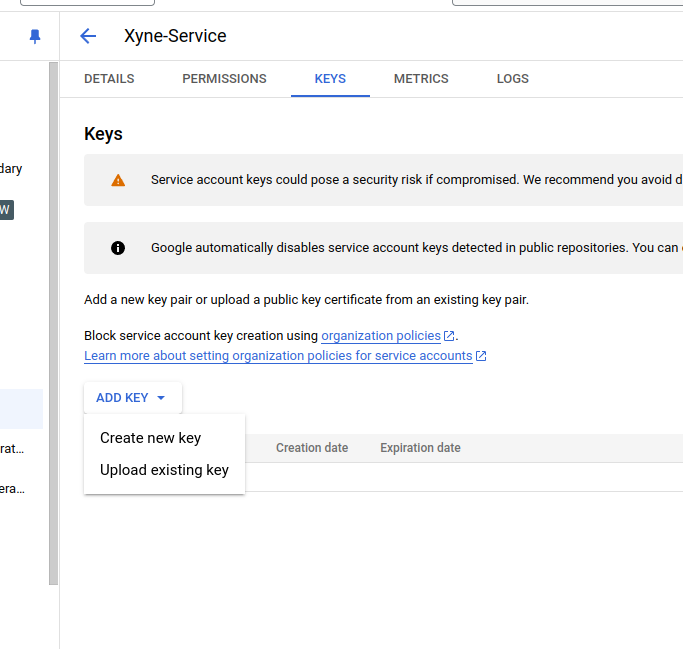 * Choose the `json` option for downloading the key file, and click on `Create`.
 * Remember the `Client id` associated with this json file.
* Once the key file has been created, choose a reliable location for downloading the key file, this will be used for putting it in the [`.env` of the application](https://docs.xynehq.com/quickstart#setting-the-environment-variables)
## Enabling APIs
Switch to the new project you just created.
The first step is to enable the APIs which are needed for the app.
* From the menu in the Sidebar, under APIs and Services section select the `Enabled APIs & Services`.
* Remember the `Client id` associated with this json file.
* Once the key file has been created, choose a reliable location for downloading the key file, this will be used for putting it in the [`.env` of the application](https://docs.xynehq.com/quickstart#setting-the-environment-variables)
## Enabling APIs
Switch to the new project you just created.
The first step is to enable the APIs which are needed for the app.
* From the menu in the Sidebar, under APIs and Services section select the `Enabled APIs & Services`.
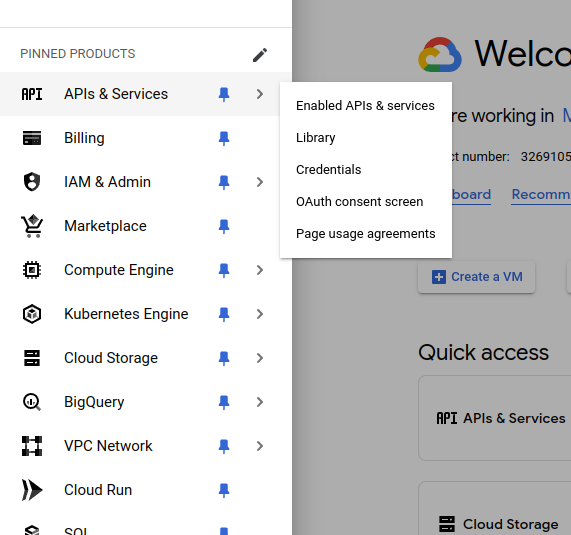 * In the `Enabled APIs & Services` page, click on the `+ Enable APIs & Services`.
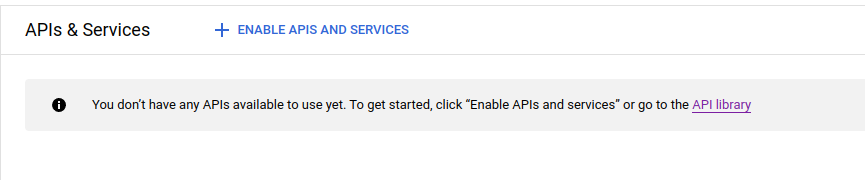 * You will now see a search box where you can search for the specific API that you want to enable. (For example : Google Drive API)
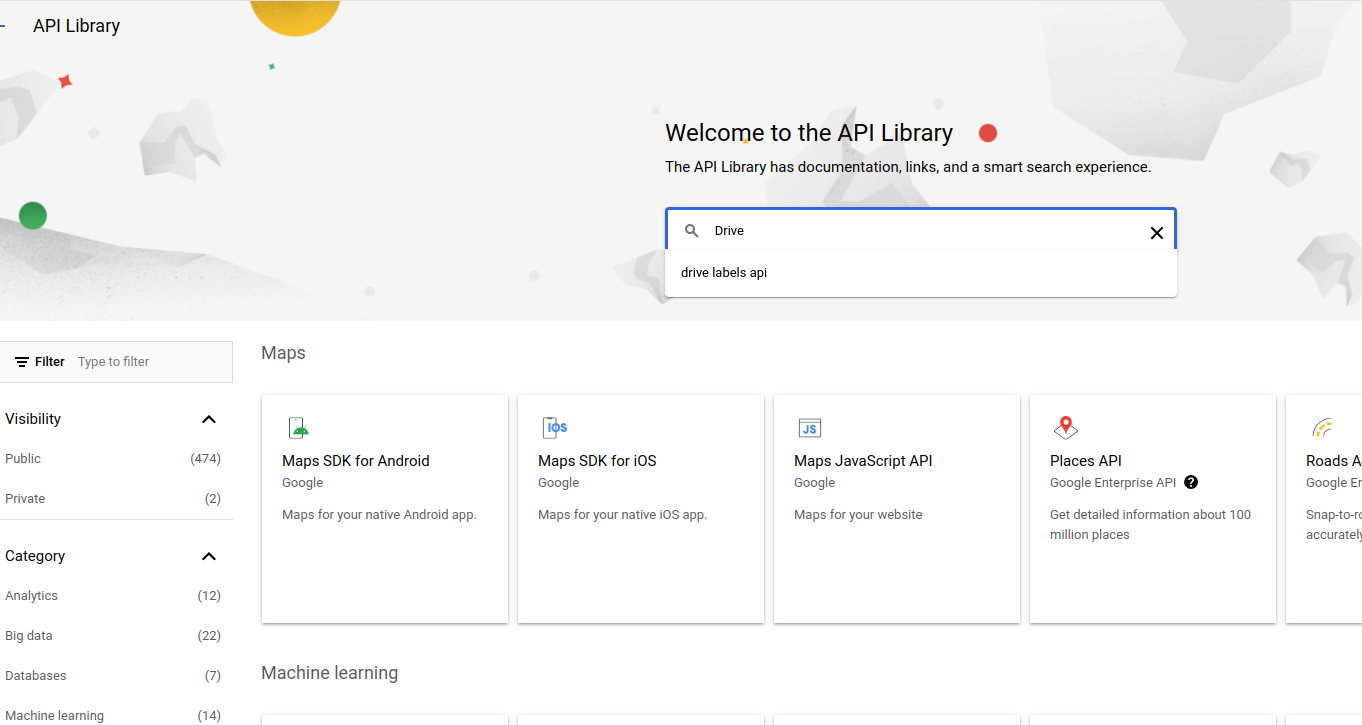 * Once you search for an API, you will find a list of APIs.
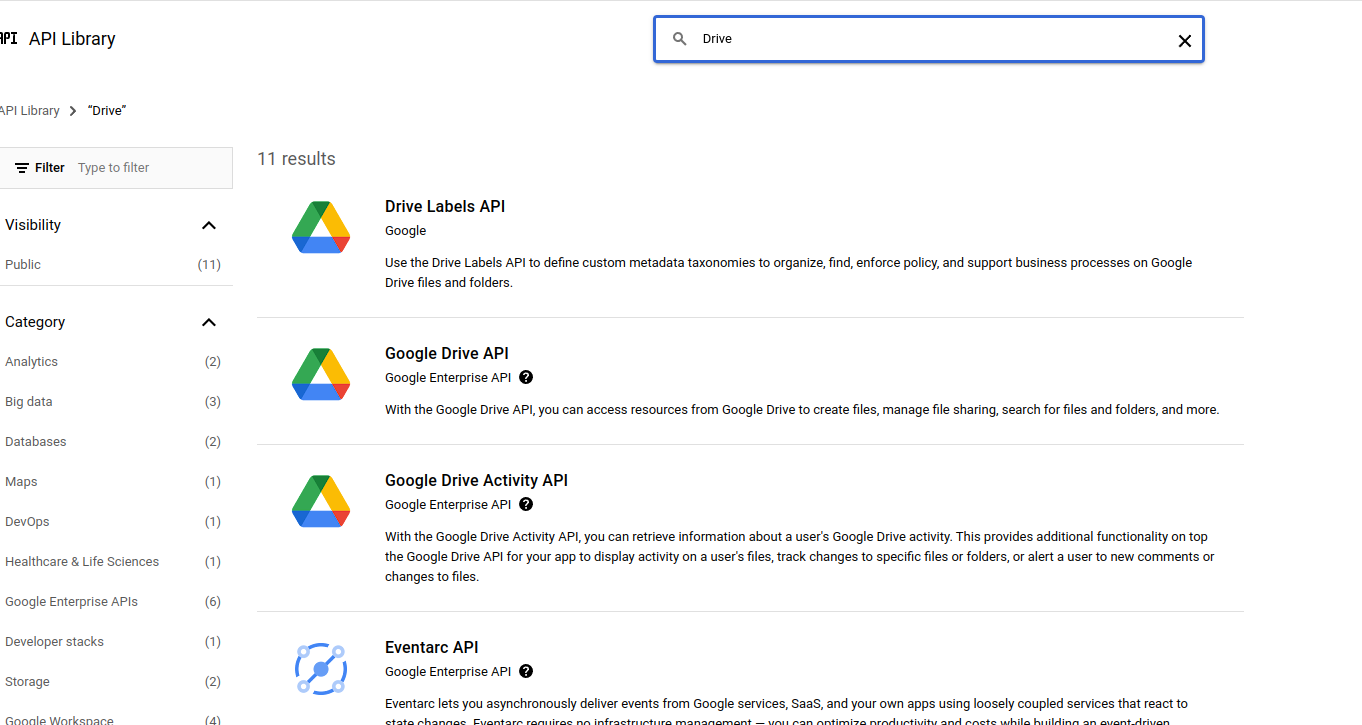 * From the list of APIs, select the Google Drive API to enable. And then click on `Enable` in the API page.
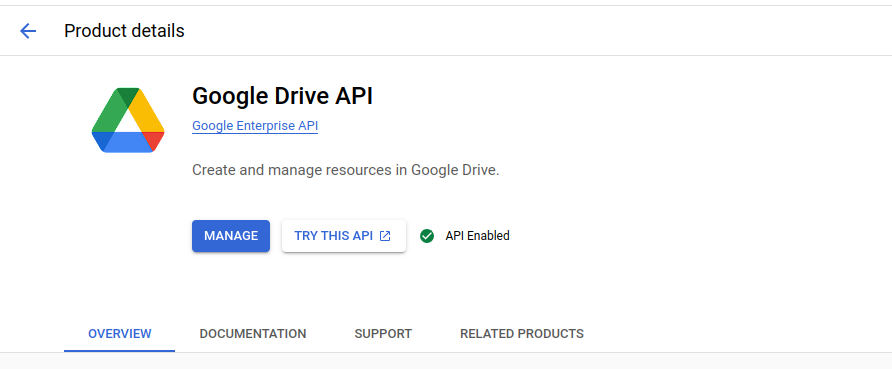
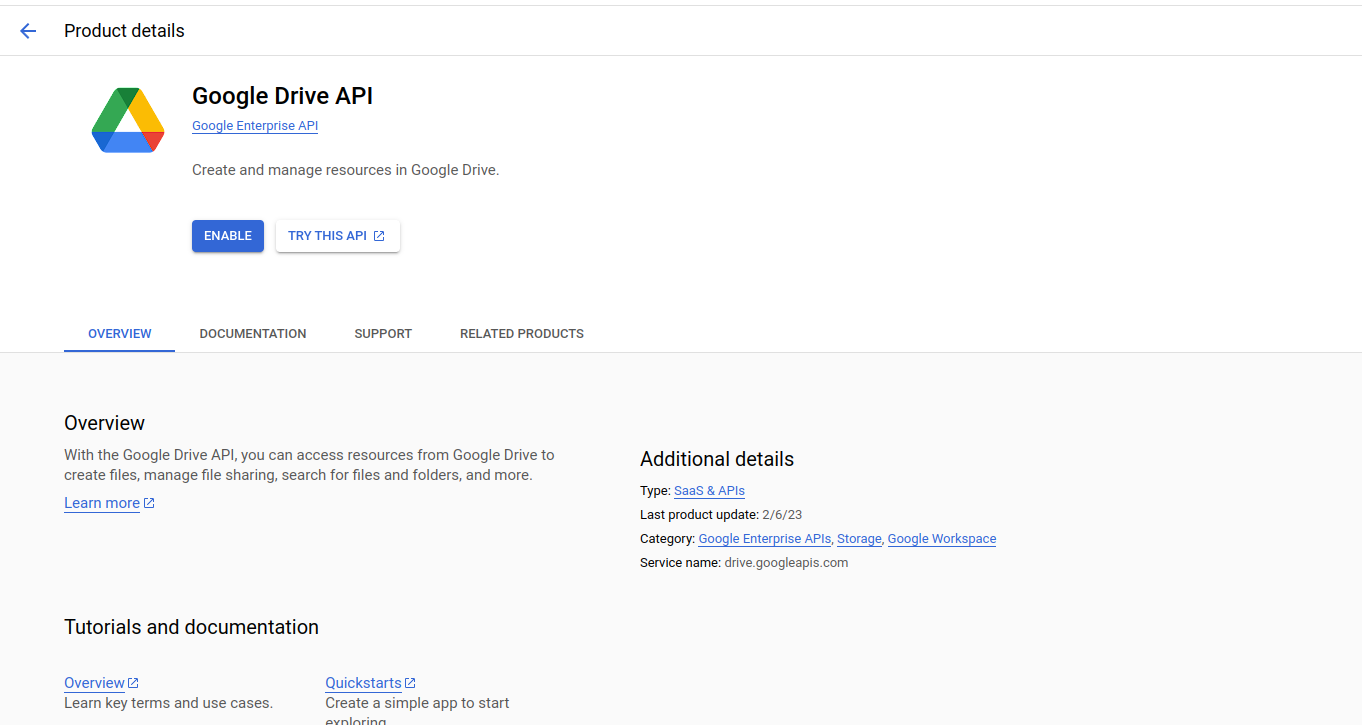 * Once the API is enabled, you will see that the Enable button now changes to `Manage`. This means that the API has been enabled.
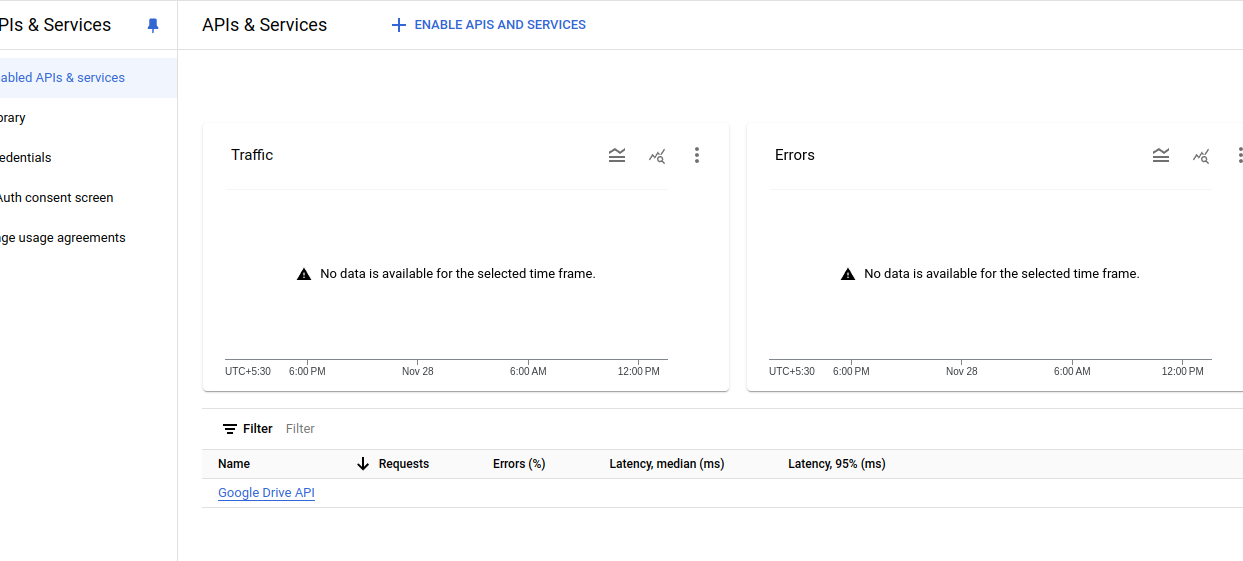
 * When you go back to the `Enabled APIs & Services` page, you will see that the enabled API has appeared in the list.
 Following the same steps above, enable the following APIs :
* [Google Drive](https://console.cloud.google.com/apis/library/drive.googleapis.com)
* [Google Calendar](https://console.cloud.google.com/apis/library/calendar-json.googleapis.com)
* [Google Slides](https://console.cloud.google.com/apis/library/slides.googleapis.com)
* [Google Docs](https://console.cloud.google.com/apis/library/docs.googleapis.com)
* [Google Sheets](https://console.cloud.google.com/apis/library/sheets.googleapis.com)
* [Gmail](https://console.cloud.google.com/apis/library/gmail.googleapis.com)
* [Contacts](https://console.cloud.google.com/apis/library/contacts.googleapis.com)
* [People](https://console.cloud.google.com/apis/library/people.googleapis.com)
* [Admin SDK](https://console.cloud.google.com/marketplace/product/google/admin.googleapis.com)
Please make sure to **enable all** the APIs listed above to ensure the Xyne app runs smoothly.
## Setting up Delegation
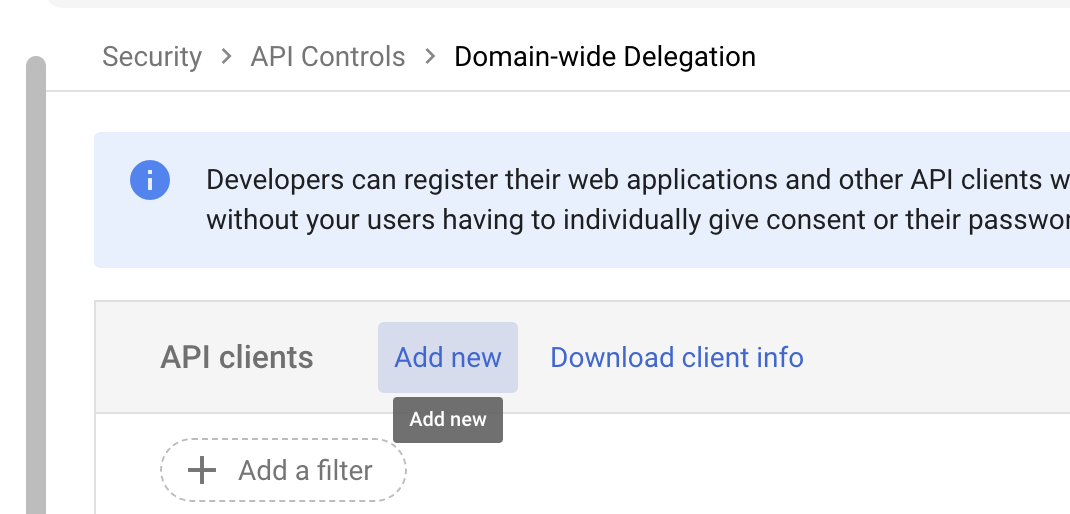
* Now that all of this is done, the `Workspace Admin` needs to do some delegations, navigate to [Domain Wide Delegation](https://admin.google.com/ac/owl/domainwidedelegation).
* Click on `Add New`
Following the same steps above, enable the following APIs :
* [Google Drive](https://console.cloud.google.com/apis/library/drive.googleapis.com)
* [Google Calendar](https://console.cloud.google.com/apis/library/calendar-json.googleapis.com)
* [Google Slides](https://console.cloud.google.com/apis/library/slides.googleapis.com)
* [Google Docs](https://console.cloud.google.com/apis/library/docs.googleapis.com)
* [Google Sheets](https://console.cloud.google.com/apis/library/sheets.googleapis.com)
* [Gmail](https://console.cloud.google.com/apis/library/gmail.googleapis.com)
* [Contacts](https://console.cloud.google.com/apis/library/contacts.googleapis.com)
* [People](https://console.cloud.google.com/apis/library/people.googleapis.com)
* [Admin SDK](https://console.cloud.google.com/marketplace/product/google/admin.googleapis.com)
Please make sure to **enable all** the APIs listed above to ensure the Xyne app runs smoothly.
## Setting up Delegation
* Now that all of this is done, the `Workspace Admin` needs to do some delegations, navigate to [Domain Wide Delegation](https://admin.google.com/ac/owl/domainwidedelegation).
* Click on `Add New`
 * In there paste the `OAuth Client Id` that you received when creating the service account key.
* Paste the following scopes :
```javascript theme={null}
https://www.googleapis.com/auth/drive.readonly,https://www.googleapis.com/auth/documents.readonly,https://www.googleapis.com/auth/spreadsheets.readonly,https://www.googleapis.com/auth/presentations.readonly,https://www.googleapis.com/auth/contacts.readonly,https://www.googleapis.com/auth/contacts.other.readonly,https://www.googleapis.com/auth/gmail.readonly,https://www.googleapis.com/auth/calendar.events.readonly,https://www.googleapis.com/auth/admin.directory.user.readonly
```
* Click on `Authorize`.
* In there paste the `OAuth Client Id` that you received when creating the service account key.
* Paste the following scopes :
```javascript theme={null}
https://www.googleapis.com/auth/drive.readonly,https://www.googleapis.com/auth/documents.readonly,https://www.googleapis.com/auth/spreadsheets.readonly,https://www.googleapis.com/auth/presentations.readonly,https://www.googleapis.com/auth/contacts.readonly,https://www.googleapis.com/auth/contacts.other.readonly,https://www.googleapis.com/auth/gmail.readonly,https://www.googleapis.com/auth/calendar.events.readonly,https://www.googleapis.com/auth/admin.directory.user.readonly
```
* Click on `Authorize`.